A Simple Method for Choosing a Note-Taking App
Choose a notes app by tracing how information enters, gets found, and becomes useful again—not by comparing long feature lists.
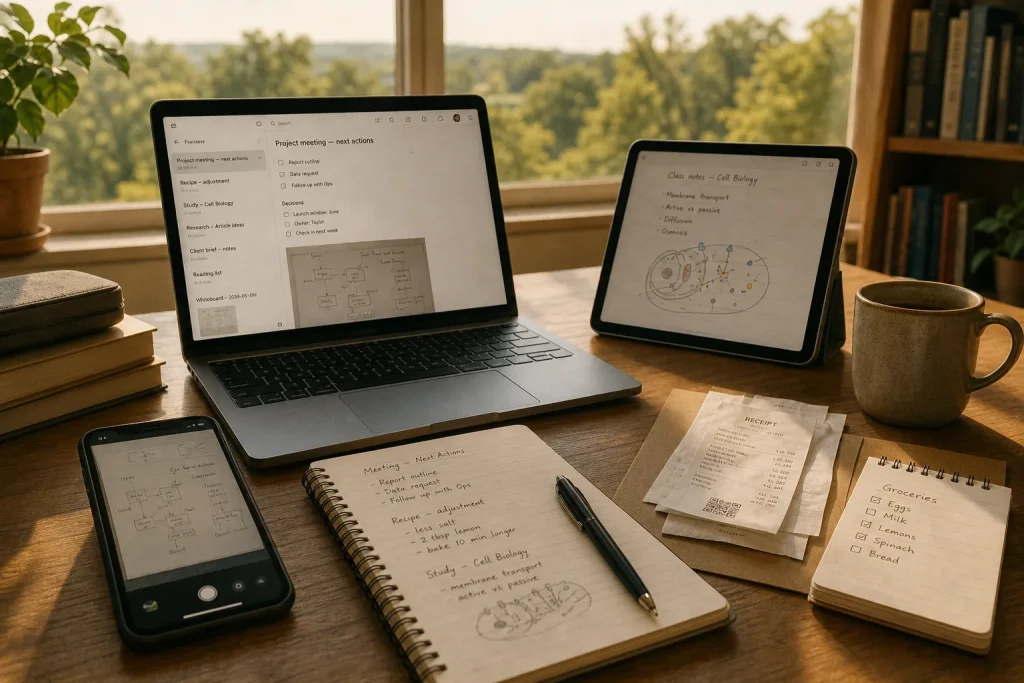
You jot a recipe adjustment in the notes app already on your phone, save a meeting decision in a document, and later search three places for the detail you need. Choosing a note-taking app is easier when you start with that everyday path rather than a catalogue of features. Look at what you capture, how you retrieve it, and what you do with it afterward. Those three jobs reveal which tools deserve a closer look.
1. Trace what you actually capture
Before comparing apps, list the kinds of information you want to keep. A short text note, a clipped web page, a photo of a whiteboard, and a scanned receipt are different capture jobs. Some apps make quick typing effortless but handle attachments awkwardly. Others can store many formats while making a simple note feel like a form to complete.
Use your own routine as the test case. If you often record a thought while walking, ask whether the app opens quickly on your phone and lets you save a note with minimal friction. If you keep instructions from a browser, check whether sharing a page into the app preserves a useful title and link. For handwritten diagrams, see whether your preferred device can capture them in a way you can later view and search.
Separate regular needs from occasional wishes. A feature you use every day deserves more weight than one you might try once. At the same time, do not dismiss a format that is essential to your work or study. Write down the few capture types that would make the app genuinely useful; let the rest remain optional.
2. Decide where a note must be available
Think about the places where you create and read notes: a laptop at a desk, a phone on the move, a tablet in class, or a shared computer. An app that works well on only one of those devices may still suit someone with a stable routine, but it can interrupt a workflow that moves between screens.
Check the actual versions you would use. A desktop app may offer folders and formatting that are absent from its mobile version. A browser-based service may be convenient on a borrowed computer, while an offline mode may matter when internet access is unreliable. Look for clear signs that edits sync between devices, and consider what happens when two devices change the same note before syncing catches up.
Do not treat access as a simple yes-or-no feature. Ask what you can do without a connection, whether a note becomes available on another device soon enough for your routine, and whether you can use the app without installing software where you do not have permission. If your notes are mainly for a single device, paying for a complex cross-device system may add needless work.
3. Test how you will find an old note
A note-taking app is useful only if retrieval works for the way you remember. Some people recall a title; others remember a phrase, a project, a date, or the place where they saved something. Search for a few realistic details: a word inside a note, a label, a file name, or a phrase from a saved page.
Try the app’s search in its phone and desktop versions. Check whether it searches only typed text or also the text in attachments and images. If it supports tags, folders, notebooks, or backlinks, notice whether those tools help you narrow results or create another layer to maintain. A large collection does not automatically need a complicated hierarchy. Often, descriptive titles and dependable search are enough.
Consider how you will name recurring notes. A title such as “Project meeting — next actions” gives more clues than “Notes,” while a date or project name can help when several notes cover the same topic. Pick a naming pattern you can keep using without deliberation. The best system is one you will still understand when you return to a note after a long gap.
4. Check what happens after capture
Notes can be destinations or working material. You might need to turn a meeting note into a task list, move class notes into a study document, or share instructions with a colleague. Before choosing an app, identify the next action you take with the information and see whether the tool makes that transition straightforward.
Look for practical ways to copy, export, print, or share content. An app may offer attractive internal organization but make it awkward to move notes elsewhere. Another may export plain text or common document formats, which can make long-term reuse simpler. If sharing is central to your work, check whether you can share one note without exposing an entire notebook or account.
Pay attention to the difference between a note and a task. A note can hold context and decisions; a task list needs clear owners, reminders, or completion states. If you routinely turn notes into actions, decide whether you want those actions inside the same app or in a dedicated task tool. Either arrangement can work, but a manual handoff that you often forget is a warning sign.
5. Compare the effort of keeping notes tidy
Organization has a cost. Folders, tags, templates, and links can make a collection easier to browse, but each system asks you to make decisions while saving or reviewing notes. Choose an app whose organizing tools match the amount of structure you naturally maintain.
If you like a clear hierarchy, folders or notebooks may feel intuitive. If one note belongs to several topics, tags can help, but only if you use names consistently. Templates are useful when you repeatedly record the same fields, such as an agenda or reading note. They are less helpful for spontaneous ideas if they add prompts you must dismiss.
Test a few common actions: create a note, rename it, move it, attach a file, and find it again. Notice the number of choices the app puts in your way. The goal is not to minimize every click; it is to avoid a system that makes routine capture feel like filing paperwork. A modest structure that stays understandable is usually better than an elaborate one that depends on constant upkeep.
6. Review privacy, access, and portability
Notes may contain personal details, schoolwork, work plans, or information about other people. Read the app’s privacy and account options before putting sensitive material in it. Check whether you can add a device lock, manage account access, and remove data when you no longer need it. For confidential work or regulated information, follow your organization’s rules and ask the appropriate professional or administrator before choosing a service.
Also ask what happens if you stop using the app. Can you export individual notes and attachments in a form you can open elsewhere? Is the export process clear enough to use without special tools? Portability does not mean you must regularly switch apps. It means you can leave without losing access to information that matters.
Consider account recovery and dependence on a particular device. A notes collection tied to an account you might lose deserves a recovery method you understand. If a tool stores information only on one device, plan how you would back it up. Match the safeguards to the sensitivity of the material rather than treating every casual reminder like a confidential file.
7. Compare a small shortlist with your real tasks
Once you know your capture, retrieval, and reuse needs, compare a small shortlist rather than browsing indefinitely. For each app, try the same handful of tasks: save a quick thought, attach a relevant item, find an older note, and move information into the next tool you use. This makes differences visible without turning the choice into a feature-counting exercise.
Use a simple decision table if it helps. Put your essential jobs down one side and each candidate across the top. Mark whether the app handles each job comfortably, with extra effort, or not at all. Do not give every row equal weight: a missing capability you rely on is more important than several attractive extras you may never use.
Keep the trial collection small and disposable. Avoid migrating years of notes before you know whether the new app fits. If you decide to switch, move a representative set first and check that titles, attachments, and links remain usable. Then decide whether a broader move is worth the effort.
8. Choose for a routine, not an imagined perfect system
There is no universal best notes app. A student who needs searchable lecture notes and a reader who saves recipes have different priorities. So does a person who writes everything on one laptop and someone who moves between a phone and a work computer. Select the app that supports your recurring tasks with the least avoidable friction, while meeting your access and privacy needs.
Set a review point after you have used the tool in ordinary situations. Ask whether you capture notes where they arise, find them when needed, and reuse them without awkward workarounds. If the answer is mostly yes, resist switching just because another app has a new feature. If one part consistently fails, identify that specific problem before looking for a replacement.
Hypothetical worked example: choosing notes for a short course
Imagine a learner who takes typed notes on a laptop during online lessons, saves occasional screenshots, and reviews material on a phone while away from the desk. The course notes need to be searchable, and selected explanations must be copied into a study document. The learner does not need shared editing or elaborate project boards.
They shortlist two apps. In each, they create a note titled with the lesson topic, add a screenshot, search for a phrase from the note on the phone, and copy one paragraph into the study document. One app makes capture and search straightforward but offers limited notebook structure. The other has more templates and linking options, but its export requires an extra formatting step.
Given these constraints, the learner chooses the first app and uses a consistent lesson-title pattern, with one folder for the course. The expected result is a collection that is easy to search and review on a phone, with a tradeoff: fewer built-in ways to build elaborate links between lessons. If that need grows, the learner can reassess with a clear reason rather than switching in pursuit of features alone.
Before committing, keep the decision small: choose an app for the notes you expect to create next, not for every possible future use. A clear capture habit, readable titles, and a dependable way out of the app will do more for a useful notes collection than a long list of features.