How to Make a Shared Team Folder Easier to Navigate
Compare three folder structures, choose one that fits how your team works, and use clear names and ownership rules to make current documents easier to find.
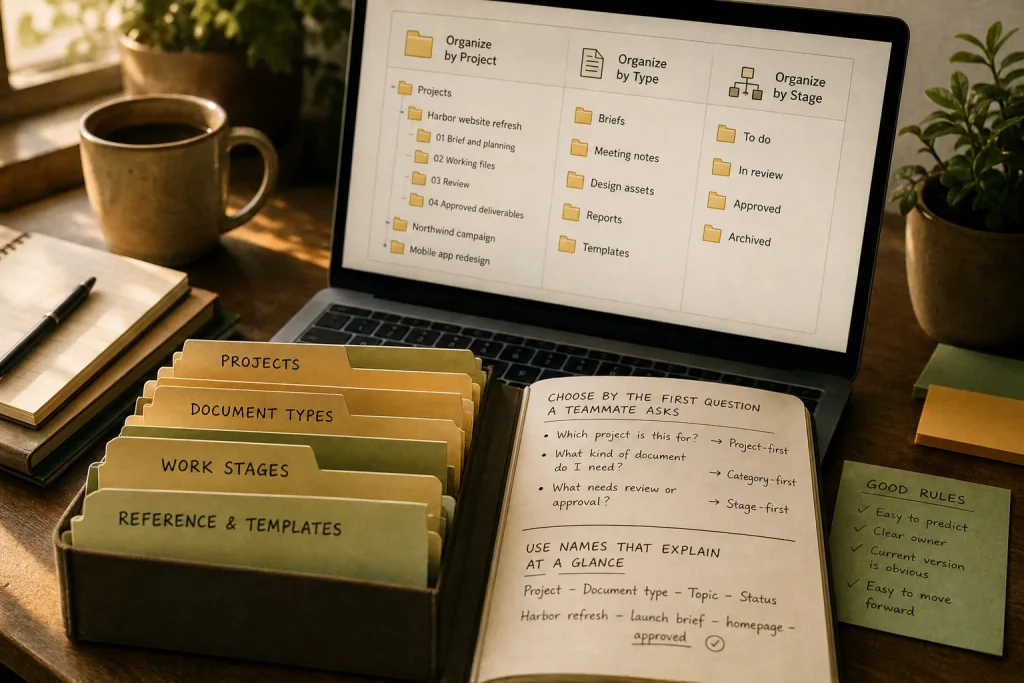
A teammate opens the shared drive to prepare a client meeting and sees folders named “New,” “Final,” and “Final updated.” The file they need may be there, but finding it depends on knowing who created it and what they meant. A good shared folder replaces that private knowledge with a structure and naming system the whole team can understand.
There is no single structure that suits every group. A small team handling a few ongoing projects may do best with project folders. A team that repeatedly produces the same kinds of materials may benefit from categories. A group with a clearly defined process may organize around stages of work. The useful choice is the one that matches how people look for documents, while making the current version and its owner easy to identify.
Start with the way people search
Before moving files, ask what someone usually knows when they need one. They might know the project name, the kind of document, or the stage of work. That clue should lead them to the right place without requiring them to remember an individual colleague’s habits.
Look at the team’s actual work, not just the names already in the drive. Write down recurring projects, recurring deliverables, and any handoffs where a document changes owners. Notice which files people repeatedly ask others to locate. Those patterns help reveal the best organizing principle.
Keep the top level small enough to scan. A few recognizable destinations are easier to use than a long list of near-duplicates. Avoid creating a folder for every person unless the work itself is genuinely organized by individual ownership. A person’s departure or change of role should not make shared material hard to find.
Option one: organize by project
A project-first structure gives each ongoing project a home. Inside it, the team can use a shared set of subfolders for documents such as planning, working files, review, and delivery. For example, a top-level folder called “Projects” might contain “Harbor website refresh,” with subfolders for “Brief and planning,” “Working files,” and “Approved deliverables.”
This approach suits teams whose work is organized around distinct projects and whose members usually know a project’s name. It keeps related material together and makes it easier for a new collaborator to understand the project’s history. Reusing the same subfolder pattern across projects also reduces the need to learn a new layout each time.
The main drawback is that some documents serve several projects. A shared brand guide, contract template, or team procedure may be copied into multiple project folders and then drift out of sync. Keep broadly reusable reference material in a separate, clearly named location, and link to it from project spaces where appropriate. If the storage service supports shortcuts, use them rather than creating another editable copy.
Option two: organize by document type
A category-first structure groups files by what they are: “Briefs,” “Meeting notes,” “Design assets,” “Reports,” or “Templates.” This can suit a team that makes the same kinds of materials across many projects, especially when people often search for a deliverable type before they remember a project name.
The difficulty is context. A report folder can become a collection of unrelated documents, and a file may not make its project obvious. If categories are the main structure, require project names in file names and consider a consistent project subfolder within each category. That adds a little navigation, but helps people distinguish one project’s report from another’s.
Category-first organization is less suitable when collaborators usually start from a project name or when files need to stay together as a handoff package. It can also create uncertainty about where a mixed-format deliverable belongs. Decide which category wins for common edge cases, and write that rule where team members can find it.
Option three: organize by work stage
A stage-first structure groups material by its place in a process, such as “To do,” “In review,” “Approved,” and “Archived.” This can work well for a team with a stable sequence of work and clear handoffs. It makes the next action visible: a reviewer can look in the review area, while a colleague preparing a release can look for approved material.
Stages should describe the state of the work, not become vague storage labels. “Current” is ambiguous unless the team defines what current means; “Approved for publication” is more specific. Assign responsibility for moving a document when its status changes. Otherwise, the same file may remain in review after approval or be copied into several stages.
This approach is a poor fit when projects follow different processes or documents move back and forth often. In those cases, stage folders can create duplicate files and confusion about which copy is authoritative. Use a project-first structure instead, and record status in the file name or a project tracker if that is how the team already coordinates work.
Choose by the first question a teammate asks
Use the team’s usual search clue as the deciding rule. If people begin with “Which project is this for?”, choose project-first. If they begin with “What kind of document do I need?”, choose category-first. If they begin with “What needs review or approval?”, choose stage-first.
Then check the choice against three practical conditions. Can a new teammate predict where a file belongs? Can the team identify the authoritative version without asking its creator? Can someone move or archive material when its status changes? If the answer to any of these is no, simplify the structure or add a specific rule before migrating files.
Do not combine all three approaches at the top level just to cover every possibility. A structure with project, type, and stage folders side by side may leave people unsure which path to use. Pick one primary route and use the other details in subfolders, metadata, or file names only when they solve a real search problem.
Use names that explain a file at a glance
A useful file name answers the questions a folder cannot: what the document is, which project it belongs to if needed, and whether it is a draft or an approved deliverable. A team might agree on a pattern such as “Project – Document type – Topic – Status.” For example: “Harbor refresh – launch brief – homepage – approved.” The precise pattern matters less than applying it consistently.
Prefer words collaborators are likely to search for. “Homepage launch brief” tells more than “Notes,” and “Approved” is clearer than “Final final.” Avoid relying on initials that only one person understands. If dates are useful for distinguishing meeting notes or recurring reports, use one agreed format and keep it in the same position. Do not add dates when they make a stable reference file look temporary.
Use the storage service’s built-in version history when it is available and suitable. Multiple filenames such as “draft,” “latest,” and “final” can obscure which file to open. If a document needs a status label, agree on a short vocabulary—perhaps “draft,” “in review,” and “approved”—and remove outdated status labels when the document changes state. Keep an older version only when there is a real retention or audit need, and put it in a clearly marked archive rather than beside the working file.
Give every shared area an owner and a boundary
A folder structure lasts only if someone can answer basic questions: who may change it, what belongs there, and what happens to completed work? Assign a role or team responsibility for the top-level layout and for shared reference material. Project owners can maintain their own project spaces, while a designated coordinator reviews the overall structure when the team’s work changes.
Write a short note at the top level that explains the structure, the naming pattern, and where to ask about uncertain files. Keep it concise enough to read while someone is looking for a document. Include a rule for archives: who moves completed projects, what should remain accessible, and how to avoid treating an archive as a second active workspace.
Set access deliberately. People who need to read a folder do not always need permission to reorganize it. Use the sharing controls in services such as Google Drive, Microsoft OneDrive, or Dropbox to match access to the work, and ask an administrator or qualified support person when permissions affect confidential or regulated material. A tidy layout does not replace careful access management.
Hypothetical worked example: a small launch team
Imagine a small team preparing a website launch. The shared drive contains a brief, design files, review comments, meeting notes, and approved copy. Team members usually ask for the project by name, so the team chooses a project-first structure rather than scattering files across document-type folders.
They create “Projects,” then “Website launch,” with “Brief and planning,” “Working files,” and “Approved deliverables” inside. They keep a reusable brand guide in “Team reference” and link to it from the project note instead of copying it into the launch folder. The team adopts the name pattern “Project – document type – topic – status,” using “Website launch – copy – homepage – in review” for the working copy and “Website launch – copy – homepage – approved” for the approved deliverable.
One person is responsible for moving approved material into the delivery folder, and the project owner archives the folder when the work is complete. The expected result is a clear route for someone who knows the project name, with less ambiguity about which copy is approved. The tradeoff is that a person searching only for all homepage copy across projects will need to search by document name or use a separate index.
Change the structure without creating another maze
Reorganize in a deliberate pass rather than renaming folders while collaborators are actively using them. First agree on the structure and naming rules. Then identify active files, determine which copy is authoritative, and move those files into the new locations. Leave a short notice in the old location that points to the new home, and remove that notice once the transition is understood.
Do not attempt to perfect every old file before improving the route to current work. Move active material first, then handle historical files according to the team’s retention needs. Before deleting duplicates, check whether they are shared links, referenced in other documents, or needed for a legitimate record. When in doubt, ask the owner or the person responsible for records rather than guessing.
Finally, watch for the same practical signal that prompted the change: people asking where the current document lives. If that question persists, find out whether the problem is the structure, an unclear name, missing access, or an outdated link. The best adjustment is usually a small rule that removes a repeated point of confusion, not another layer of folders.