Turn Off the Notifications That Do Not Need Your Attention
Review notification sources in a deliberate order, decide which alerts deserve to interrupt you, and set calmer defaults across your devices and services.
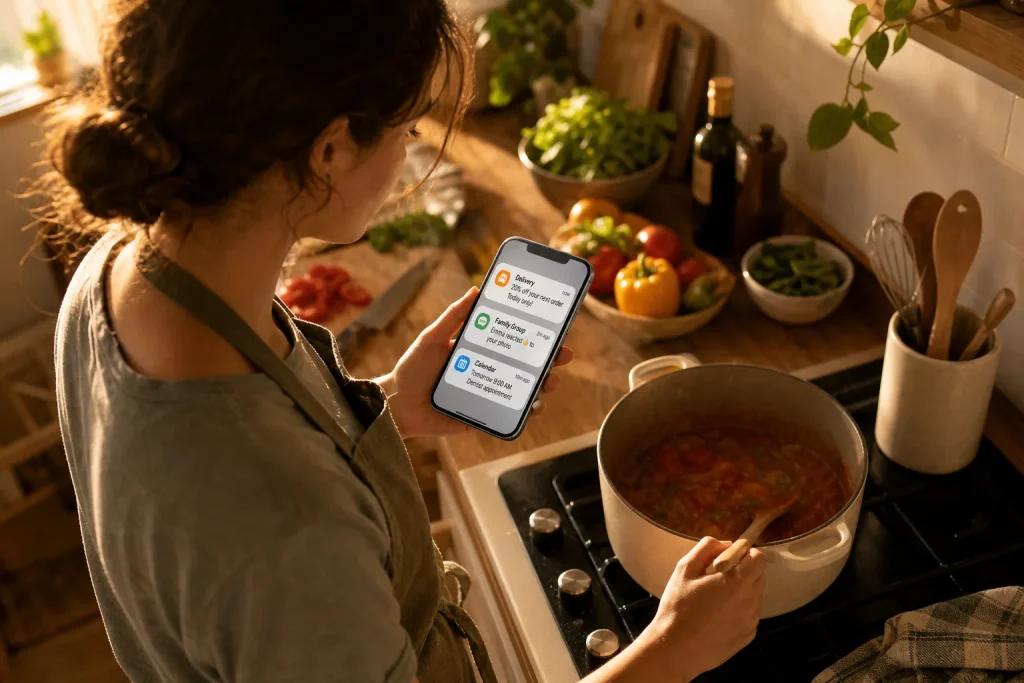
Your phone lights up while you are making dinner: a delivery app announces a promotion, a group chat shows a new reaction, and your calendar reminds you about tomorrow’s appointment. One alert may help; the others can wait. A useful notification is not simply one that contains information. It is one that reaches you at a time and in a way that supports a decision or action you care about.
To reduce interruptions without missing important messages, review alerts by source and purpose. Start with the device settings, then adjust individual apps and services, and finish by checking what still gets through. The aim is not silence for its own sake. It is a set of defaults that lets urgent or time-sensitive information stand out.
Decide what deserves an interruption
Before changing settings, sort alerts into three practical groups. Interrupt now means a delay could cause a real problem or require a timely response. A call from a chosen contact or a security alert about an account might belong here. Check later includes useful updates that can wait until you open the service, such as a package status or a work-channel message. Do not send covers promotions, routine engagement prompts, and repeated reminders that do not help you act.
These categories depend on your circumstances. A school’s urgent closure message may deserve an alert during the day; a social app’s prompt that someone posted does not usually need the same access to your attention. If you are unsure, ask what you would do differently because the notification arrived immediately. If the answer is “nothing,” it can probably be delayed or turned off.
Start with your phone’s notification controls
Open the notification settings on your phone and review the app list. The exact names vary by operating system, but settings are usually available through the main Settings app. Look at apps one at a time rather than switching everything off at once. Keep alerts for sources that need to reach you, and disable or quiet sources that only create noise.
For each app, check more than its on-or-off setting. Some phones let you choose whether an alert appears on the lock screen, makes a sound, uses a banner, or adds a badge to the app icon. A badge is the small count or dot that can linger after an alert. If a count makes you feel obliged to clear it but does not prompt a useful action, remove the badge while keeping the app available when you choose to open it.
Choose the least disruptive form that still works. For example, a non-urgent message might appear in the notification shade without a sound or lock-screen preview. A time-sensitive alert could remain audible. If your device offers scheduled summaries or quiet hours, use them for alerts that are worth reviewing together rather than as they arrive.
Adjust the source inside each service
Device settings control how alerts reach you, while an app’s own settings often control which events generate them. Check both. In a messaging app, you may be able to mute a busy group while leaving direct messages enabled. In a shopping app, you can often retain an order or delivery update while disabling deals and recommendations. In a calendar, keep event reminders you rely on and remove prompts for features you never use.
For email, consider separating messages that need a prompt from newsletters and routine updates. If your mail service supports filters or inbox categories, route newsletters into a separate folder or tab, then disable their push alerts. Keep alerts for a specific sender or folder only if receiving them promptly changes what you need to do. Avoid turning off all email notifications reflexively if you depend on a particular message for a timely decision.
Work tools deserve a similar review. A project app may offer alerts for direct mentions, assigned tasks, channel activity, and general announcements. Keep the events that carry a clear request or deadline; mute broad activity feeds that repeat what you can see when you open the tool. If your workplace has expectations for urgent contact, follow those norms and ask a manager or teammate how truly urgent messages should be sent.
Choose a deliberate default for new apps
When installing an app or creating an account, pause before accepting its first notification prompt. Permission to send alerts is not the same as a promise to send only necessary ones. If you do not yet know what the service will send, decline for now and enable a specific alert later if a real need becomes clear.
When you do enable alerts, look for controls during setup or in the service’s notification menu. Turn on the smallest useful set: perhaps appointment changes rather than every calendar feature, or delivery status rather than promotional offers. If the service asks to send marketing notifications, treat that as a separate choice from operational updates. You can usually revisit the decision in the app or your device’s settings.
Also review notification previews. A preview can reveal a message on a lock screen visible to other people. For private services, choose to hide content while still showing that an alert arrived, or keep those alerts off. This is a practical privacy choice as well as an attention choice.
Use a hypothetical example to make the choices concrete
Hypothetical worked example: Imagine you use a phone for family messages, a work chat, email, a grocery delivery app, and a photo-sharing service. You want calls from family and direct work mentions to reach you, but you do not need alerts for every group reaction, newsletter, grocery offer, or new photo post. You open the phone’s notification settings and keep calls and direct-message alerts active. You mute reactions and general work-channel activity in their respective apps, disable email push alerts for the newsletter folder, and turn off photo-sharing alerts for new posts. In the grocery app, you retain order and delivery updates but disable promotions. The expected result is that a small set of useful events can still interrupt you, while the rest wait until you open each service. The tradeoff is that you may notice a non-urgent update later, so you would keep any alert tied to a real deadline enabled.
Check what still interrupts you
After changing settings, pay attention to the alerts that continue to arrive. When one appears, ask whether it needs an immediate response, whether it could be quieter, and whether the same information is already available elsewhere. Use the answer to adjust one source at a time. If an app’s controls are confusing, start with the device-level option to silence its banners or sounds, then explore the app’s settings when you have a moment.
Do not assume that every alert is optional. Some account-security warnings, medical-service messages, or time-sensitive work notifications may need prompt attention. For consequential health, safety, or professional decisions, follow the relevant service’s guidance and consult a qualified professional where appropriate. Keep a reliable way to check essential accounts even if you reduce their push alerts.
A calmer notification setup is maintained through occasional, small decisions rather than a dramatic reset. When you add a service, begin with alerts off; when an alert proves genuinely useful, enable the specific event that supports your next action. That default gives your attention a reason to be interrupted instead of making every app compete for it.